
A discontinued product does not automatically have a like-for-like replacement. Before switching from one SKU to another, purchasing, warehouse, and sales teams should align on the notice, usable stock, product differences, customer choices, and effective date. An old-to-new SKU map can make each decision traceable and help prevent a candidate replacement from being shipped as if it were the same product.
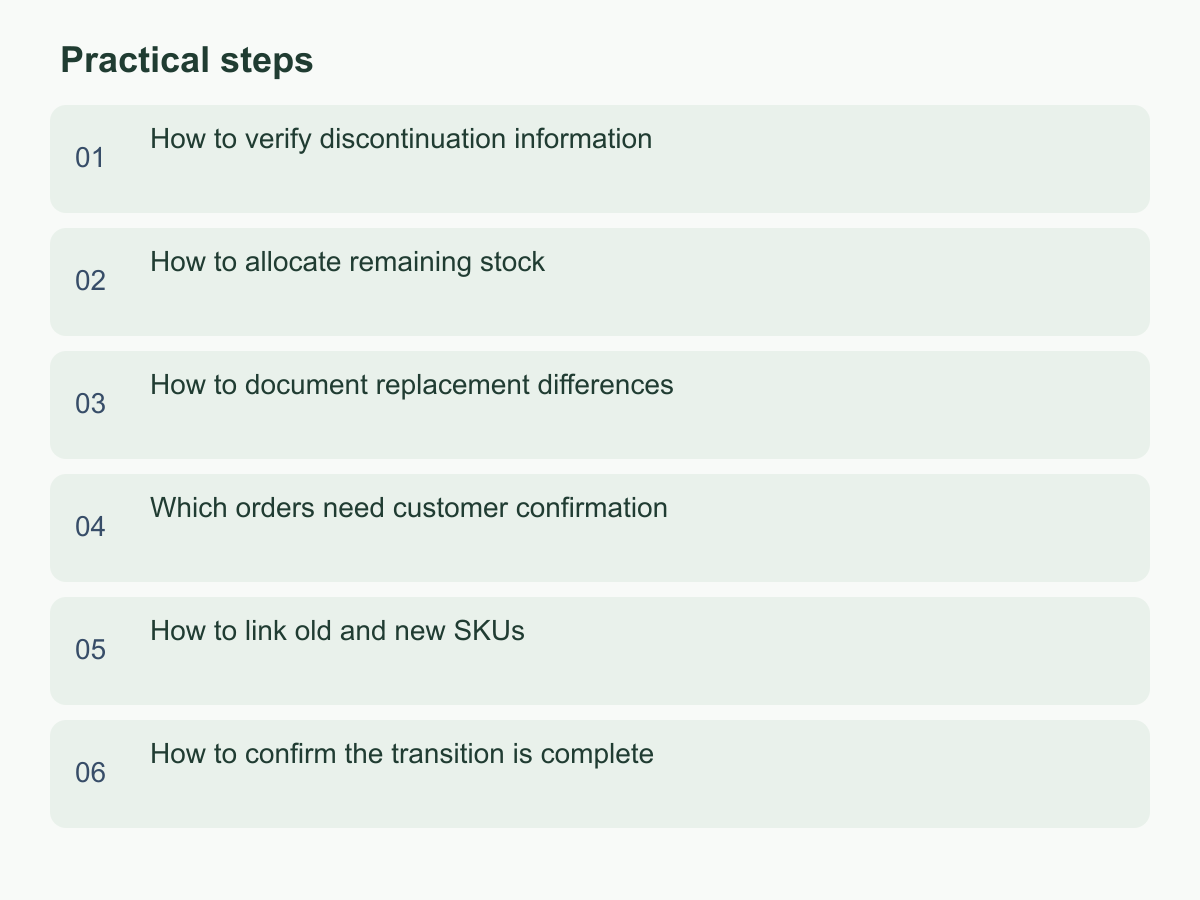
How to verify discontinuation information
Start by separating who reported the discontinuation from when supply actually ends. A sales update, an out-of-stock page, or a pause in purchasing is a lead, not confirmation. Ask the supplier for a written notice and verify the issuer, notice date, old SKU, product name, and applicable market or batch. If the notice only says the product is being discontinued, mark it as pending; do not guess a date or infer the old product’s final supply date from a replacement’s launch.
Record the milestones separately: the last date for new orders; the last shipping date; whether confirmed orders can still be fulfilled; whether repair parts or accessories remain available after current stock is sold; and which specifications are covered. A last-order date is not necessarily a last-shipment date, and a notice for one batch may not cover every variant. Ask the supplier to answer each point, then retain the original email or document, its version, receipt time, and responsible contact.
Compare the notice with purchase orders, receipt records, on-hand stock, in-transit quantities, and open orders. Match the supplier’s identifier to internal master data. Where products share a name but have different packages or specifications, check both the SKU and specification fields. Purchasing verifies the source, inventory staff count the goods, and sales identifies affected customers. Keep the item pending verification until these checks agree.
For example, suppose a supplier says A-100 will no longer accept new orders from November 30 but says nothing about already confirmed orders. Record “New orders stop: November 30” and “Existing orders: written confirmation pending” separately. Do not turn that into “all sales end after November 30.” If contacts give conflicting answers, preserve both sources and ask the supplier’s designated contact to confirm the final position in writing.
How to allocate remaining stock
Take a physical count using the same reference date, and separate stock that is ready to ship, reserved, awaiting inspection, awaiting a return decision, or in transit. The quantity in the system may not equal the quantity available to promise. Mark picked goods, customer-consigned stock, and items awaiting acceptance according to their actual status instead of counting everything as available. Record the count time, location, batch, and person responsible.
Before allocating stock, check order commitments, requested delivery dates, and each customer’s choice about old or new products. Set a clear order for retaining the original SKU, asking the customer, or holding stock for a decision. Do not automatically replace items based only on order date: some orders specify a model, some have not shipped, and some customers may accept a split delivery. Record who moved stock from reserved to available, when, and based on which confirmation.
The following hypothetical count shows one way to record 24 shippable units:
| Use | Quantity | Allocation condition |
|---|---|---|
| Confirmed orders | 8 units | Ship the original SKU |
| Customers who confirmed acceptance of the old product | 6 units | Retain the written reply |
| Not yet allocated | 10 units | Wait for confirmation or a later decision |
The total is 8 + 6 + 10 = 24 units. Link each allocation to an order number or customer record. If the count, quality status, or customer choice changes, update the quantity and its destination before promising another shipment. The 10 unallocated units do not authorize a direct swap to a replacement; check for new demand and unanswered orders before releasing them.
How to document replacement differences
Build comparison information for the new SKU before deciding whether it can replace the old one. Include the product name; dimensions or specifications; material or composition; compatibility conditions; packaging unit and quantity per pack; instructions for use; accessory requirements; and supply or delivery information. Explain why a field does not apply, and mark unavailable details as pending. For each entry, identify its source, such as a supplier document, product label, or internal test record.
Classify each difference as the same, different, or not yet confirmed, and state what it could affect. A size difference may change installation or storage. A different package unit may change order quantity, picking, and pricing procedures. Different accessories or compatibility conditions may require a check of the customer’s existing equipment or use case. If the products only serve a similar purpose, call the new item a candidate replacement rather than an equivalent product.
The following figures are hypothetical and illustrate how to show a difference, not actual product specifications: the old item is listed as 10 × 20 and the new item as 12 × 20. Keep both original values, record the size difference, and mark suitability as pending. Do not copy the new value into the old SKU’s specification field. If source documents omit weight, material, or compatibility information, leave those fields pending and assign someone to obtain the details.
Have someone familiar with the product’s use check whether a difference changes what the customer will receive, requires an additional accessory, affects the original order unit, or calls for a sample or document before a decision. Record who proposed and checked the comparison and when the decision was made. If the result applies only to a customer, batch, or use case, state that limit so it is not applied to every order.
Which orders need customer confirmation
Find all unfinished quotations, orders, reservations, and scheduled shipments, then group them by order terms and delivery status. For orders that specify an SKU, specification, or package, check whether the original item can still be supplied as agreed. Do not amend an order merely because the warehouse has received a new product. Check whether a customer’s previous acceptance of a substitute covered this SKU, specification, quantity, and use case.
Group orders into three practical categories: those that can ship as ordered with the original SKU; those that need a customer choice because stock or timing has changed; and those with a clear confirmation for this particular replacement. Have sales review custom specifications, bundles, split deliveries, and stated use cases with the purchasing or product owner. If the customer confirmed only part of an order, record the accepted quantity and do not extend that response to the rest.
When asking the customer, provide the information needed to decide in one message: original SKU and quantity, remaining supply, replacement SKU, specific differences, and any packaging or delivery impact. Offer choices such as accepting the replacement, waiting for the old product, accepting a split delivery, or pausing that item, subject to the existing transaction and both sides’ confirmation. State a delivery date only when it is confirmed; otherwise say that timing is pending.
Set an internal follow-up date so sales can act before the planned shipment changes. This is a work-management milestone, not a statutory deadline. Until the customer replies, keep the original order status and pause the substitution; silence is not acceptance. Retain the comparison sent, recipient, customer’s original reply, scope of approval, and person handling the next step. If replies come from different contacts, confirm who can decide for that order before updating picking instructions.
How to link old and new SKUs
Keep the old SKU and new SKU as separate records, connected by a clear relationship such as candidate replacement, approved replacement, or valid only for a specified order. Do not rename the new SKU to overwrite the old one or combine their inventory codes. That could obscure the history of orders, costs, batches, and customer decisions. A link records a transition relationship; it does not prove that specifications are identical or that every customer accepts the change.
At a minimum, the map should include old and new SKUs, relationship status, a summary of differences, applicable customers or conditions, supporting confirmation, effective date, last available date for the old item, owner, and reviewer. If one old SKU has several candidates, list each separately with its selection conditions. If package quantities or order units differ, record the conversion and how it was checked. Do not assume that one unit of one SKU equals one unit of the other. Mark unsupported fields as pending and hold automated substitutions or bulk updates until they are verified.
For example, A-100 may be linked to candidate SKU B-200. After comparing the products and receiving customer confirmation for a specific order, point that order’s next step to B-200. Keep other customers’ orders and unconfirmed orders on the original SKU. Set the effective date to when the process will actually begin using the new item, and notify purchasing, sales, and warehouse staff who are affected. Updating the product master alone does not complete the transition.
Before changes, preserve the existing values or a copy of the prior version. Record who proposed and approved the change, when it takes effect, and which comparison or customer reply supports it. Afterward, check an open order, an inventory record, and a shipping instruction. Confirm that the old item remains identifiable, the new item appears only within its approved scope, and the package unit has not been changed incorrectly. If the system cannot mark replacement relationships, use a controlled comparison sheet and have an owner check each order until the recordkeeping method is confirmed internally.
How to confirm the transition is complete
Set the transition date for when the process is ready to handle applicable demand under the new rules, not simply the date the replacement arrives. First confirm that the supplier notice is verified, remaining stock is counted and allocated, product differences are documented, required customer replies are recorded, and the SKU link and effective scope are approved. Keep any order or customer with an unresolved item as an exception; do not switch every order at once.
During the change, compare each open order, stock reservation, picking list, shipping document, and SKU map. Are orders committed to the old SKU still being fulfilled as ordered? Are customers who accepted a substitute receiving the confirmed specification and package? Are unanswered orders still unchanged? If any answer does not match, pause that order and determine whether the issue is the stock count, order instruction, customer reply, or master-data relationship. Correct the record and note the reason before proceeding.
Use one checklist after the change to record completion date, inventory differences, open exceptions, handler, and reviewer. Confirm that new orders will not use a discontinued SKU by mistake, that old stock has not been allocated twice, and that pending customer replies have not been treated as acceptance. If old stock remains, record its reserved purpose and release conditions. Note any orders for which the new product is unsuitable so the limits remain clear during handover and later lookup.
A practical first step is to create one row in the comparison map with the old SKU, discontinuation source, usable quantity, candidate replacement, and orders awaiting a customer decision. Purchasing, sales, and warehouse staff can then check the row together and assign an owner. For more information about Chan & Chung, visit the English homepage.