
Email-domain authentication should begin with one question: who sends mail on the company’s behalf? SPF identifies permitted sending sources, DKIM lets receiving systems verify a message’s signature, and DMARC checks whether authentication aligns with the visible sender domain. These checks can improve authentication signals, but they do not guarantee inbox placement or, by themselves, prevent impersonation. Start with an inventory, verify each source, record the evidence, and only then remove retired systems. Each change should be traceable to a system owner and the platform’s documentation. The sequence below moves from inventory and DNS checks to testing, reporting, and cleanup, helping domain administrators and sending-system owners hand work over clearly.
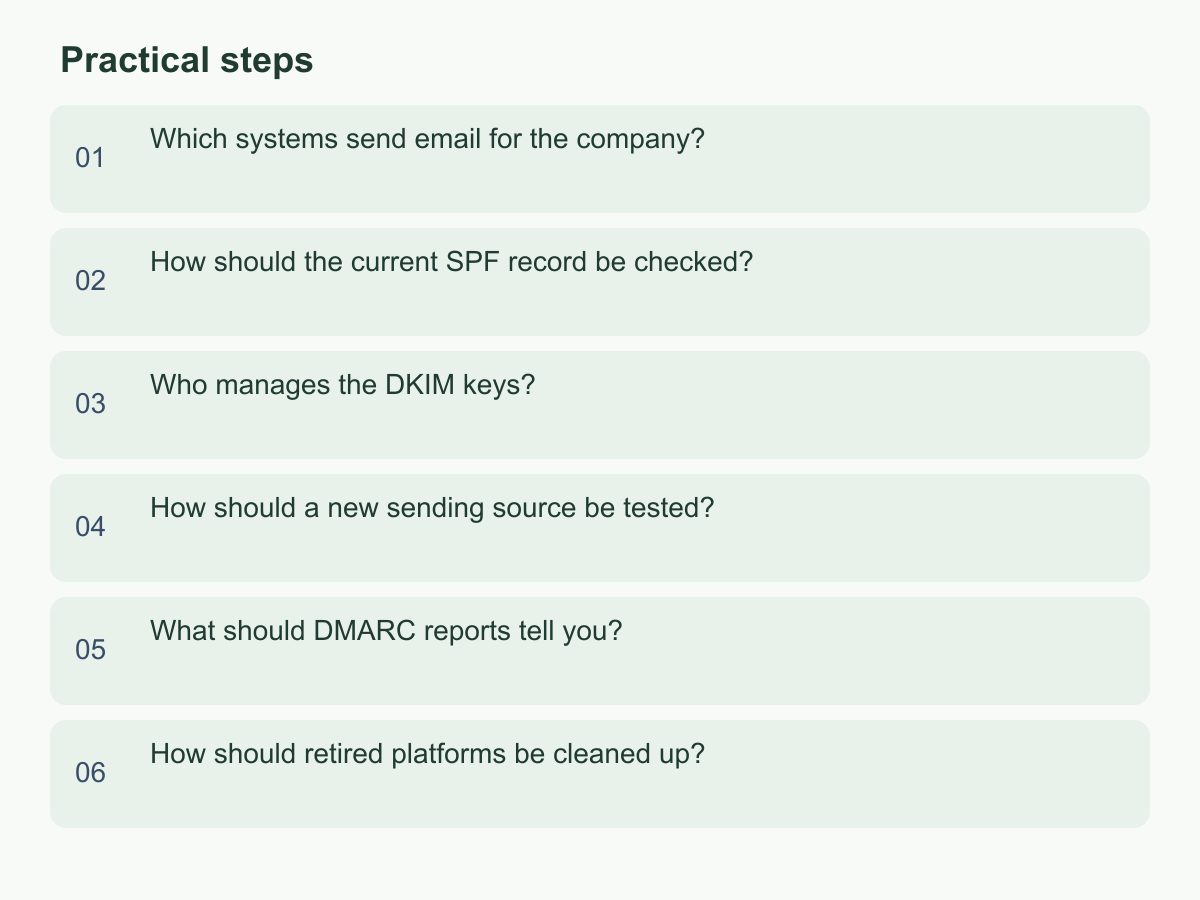
Which systems send email for the company?
Inventory every system that sends from the company’s domain or sends notices on its behalf, not only employee mailboxes. Possible examples include website inquiry forms, billing or order notices, support-ticket tools, customer relationship management systems, newsletters, cloud-monitoring alerts, and staff sending through an email platform. These are prompts for investigation, not claims that the company uses them. For each source, confirm whether it is active, the platform and purpose, From address, reply address, bounce domain, test recipient, and settings owner.
| Inventory item | Evidence to keep |
|---|---|
| Website form | Test message headers and form owner |
| Billing or support notices | Platform, message sample, and system owner |
| Newsletter or bulk notices | Sending domain, official platform setup page, and active status |
Check shared sending domains, subdomains, and brand domains too: one provider may send from several accounts, while one system may switch delivery services. Cross-check actual message headers and admin settings instead of guessing from a vendor name. If you cannot send a test yet, record why, the contact, and the missing evidence; leave the source unverified. A platform guide saying a feature is enabled does not establish that the company’s DNS is correct.
Record the visible From address, SMTP envelope MAIL FROM, and DKIM signing domain separately; they can differ. DMARC checks alignment against the From domain (see RFC 9989). A message displaying notifications@company.example could use a provider’s subdomain for bounces; the display alone cannot establish that SPF authorizes the main domain. Assign each source an internal contact and record its last successful send time, or mark it unverified. If no owner is known, flag it for follow-up rather than deleting DNS records.
How should the current SPF record be checked?
Confirm the domain used by the sending address and where its DNS is managed, then inspect all TXT records for a policy that starts with v=spf1. Compare it with current official instructions for each active sender: authorized sources, every include, legacy platforms, the ending policy, and the exact domain covered. Do not copy an include from another company or example; providers, accounts, and products can differ. RFC 7208 limits DNS-querying mechanisms to ten before a permanent error can result, so expand nested includes instead of counting only visible terms.
Confirm each sender’s actual MAIL FROM. Track the main domain and bounce subdomain separately: a policy published for one does not automatically set policy for the other. For a custom bounce domain, follow the provider’s delegation or CNAME steps, then check the SPF domain in an actual message header. Add sources within the existing policy; do not publish a second SPF record for one service. Map each source to the mechanism that authorizes it, and document why an entry remains or is proposed for removal.
Multiple SPF policies for one domain may not be processed correctly. Back up the original record, combine valid authorizations into one policy, and log the change. Do not tighten the ending policy until all legitimate senders are confirmed; omitted sources could fail. Save the hostname, raw TXT value, and query time from a read-only DNS lookup. Mark each entry keep, confirm with owner, or proposed removal. Verify the result with the sending platform’s tool or actual message headers.
Who manages the DKIM keys?
Usually, the platform that signs the email manages DKIM. It provides the signing setup; the domain administrator publishes the public key as a DNS record, and the platform uses the matching private key to sign messages. For each sending system, confirm whether signing is enabled, the d= signing domain, the s= selector, and the required DNS hostname. The receiving system uses the domain and selector in the message to find the public key. RFC 6376 defines DKIM signatures and selector lookup. Fields, record values, and supported algorithms can vary, so use the current instructions for that account.
Record who controls keys and changes: who updates DNS, operates the platform, and can help restore service if something fails. Publish the key under the requested selector hostname, not at the root domain. DNS control panels differ on whether they expect a fully qualified name or append the domain automatically, so check the provider’s input instructions. If the provider requires customer-managed signing, use an approved method to protect and rotate the private key. Never put a private key in public DNS, general documentation, or a support ticket. When the provider hosts signing, the domain administrator usually needs only to publish its public key; a selector from another platform is not a shared setting.
Before rotation, confirm the new selector record can be queried, switch signing according to the platform’s steps, send a test, and check the DKIM result and signing domain in the headers. Keep the old record until it is confirmed to be unused. If a test fails, check the selector, domain, and exact record value, and whether an intermediary changed the message. Ask the platform to inspect that test message’s signing status rather than guessing and rebuilding keys.
How should a new sending source be tested?
Before adding a source, record the current DNS text, test time, and expected result. Check the sending system’s official instructions for its sending domain, SPF authorization method, DKIM selector, and verification steps. If a sandbox is available, validate the flow there first. For a real message test, use an inbox you control that exposes full headers; avoid sending to unrelated recipients. Test each actual path, such as a website form, transaction notice, or support reply. A message sent from an administrator’s mailbox does not prove that every source works.
For each test, record the trigger, expected sender name, receiving inbox, result, and owner. Keep the full headers and timestamp, not only a screenshot of a green status indicator. If the platform reports that DNS is valid but a real message fails, record the difference: the presence of a DNS record and the identity actually used to send are separate observations. Change one type of record at a time to make the result easier to diagnose. For multiple systems, keep results by account and use; success on a test domain does not establish success for the production sending domain.
Open the message’s raw headers and record SPF, DKIM, and DMARC results from Authentication-Results, including pass, fail, or another result. Check the SPF domain, DKIM d= value and selector, and DMARC alignment with the From domain. An SPF pass or DKIM pass alone does not mean DMARC will pass. Include the system, sending address, test scenario, time, and result in the log. If DNS shows the new value but a test fails, check the actual sending source, spelling, selector hostname, whether the DNS interface split or truncated the TXT value, and whether the platform is still waiting for verification. After a change, retest the affected item and one existing sending path. Keep the evidence and rollback steps for the system owner. A successful test confirms only that message’s authentication signals; it does not guarantee delivery or inbox placement.
What should DMARC reports tell you?
Check whether a DMARC record exists at the _dmarc hostname, then confirm its policy, report recipient, and responsible owner. If no reporting mailbox exists, decide who will receive and review reports and how the data will be protected. DMARC requires at least one of SPF or DKIM to pass and align with the visible From domain; it is not enough for each to pass independently without alignment. The current specifications and report format are available in RFC 9989 and RFC 9990. Providers vary in whether they send reports, what they cover, and when they arrive. Reports are not a complete inventory of all email or proof of delivery.
Review aggregate reports by date, source IP or group, message volume, SPF and DKIM results, domain alignment, and the receiving system’s disposition. Compare reported sources with known sending systems. If a legitimate source suddenly becomes unaligned, check for changes to its bounce domain, signing domain, or sending platform. For an unknown source, preserve the sample and time range, then investigate whether it is a newly authorized tool or impersonation; do not block it based on one row. Before tightening policy, have the owner account for common sending scenarios, compare the next available reports, and then decide whether to adjust. Keep a record of report recipients, data access, and escalation contacts.
Watch changes in volume and timing: a new source appears, a familiar one disappears, or failures rise after a policy change. Compare these signals with deployment and business records. A source IP may belong to shared provider infrastructure, so its name alone does not establish whether the mail is legitimate. If a third-party reporting tool processes the data, confirm who can access it, how it is retained, and how it can be deleted. When reports are incomplete, cross-check test headers and platform logs. DMARC offers monitoring and policy signals, but not every recipient provides reports or blocks every spoofed message.
How should retired platforms be cleaned up?
Use this order: stop the old platform from sending, confirm the replacement flow has been tested by its actual owner, then consider removing DNS records. List the old platform’s SPF include, DKIM selector, bounce domain, and other related records; note which system uses each and who owns it. A cancelled login or expired account does not prove the platform has stopped sending. Website plugins, scheduled jobs, backup notices, or old forms may still use it. In the change request, list what will be removed, why, the approver or contact, the pre-change values, and how to restore them. Confirm that no other team shares the settings.
After deactivation, compare the sending inventory with available DMARC reports and ask system owners to confirm that the old platform no longer appears in successful flows. Do not assume a fixed waiting period; sending schedules and report timing vary. Before removing an SPF entry, check that one valid policy remains and that no active sender’s authorization will be lost. Confirm that a DKIM selector is no longer used for signing. After the change, query DNS again and send representative test messages for every remaining active path. Keep before-and-after values and header results. If legitimate mail fails, restore the previous version and investigate the omitted source; do not treat the failure as success.
A sending provider may remain in use as a backup or through another team’s account, so check that records are not shared before removal. A selector’s absence from recent test messages alone does not prove that the whole system has stopped using it. Update the inventory with the retired system, evidence of its final send, and the removal time. This gives future system owners a reference and helps prevent duplicate authorizations or unowned records. If DNS administration has changed hands, confirm the record’s purpose with the current owner before making a change.
You can give this inventory to each sending-system owner and ask them to add the official setup reference and test evidence for their source. To learn more about Chan & Chung, visit the English homepage.