
A GA4 access review shows why each identity has access, at which level, and with what role. It establishes how to remove access when work ends and who can take over. Account-level access may extend to every property under an account, so role names alone can miss inherited access. Use these six checks for a reviewable register. Confirm need with the access list and internal owner, not report activity.
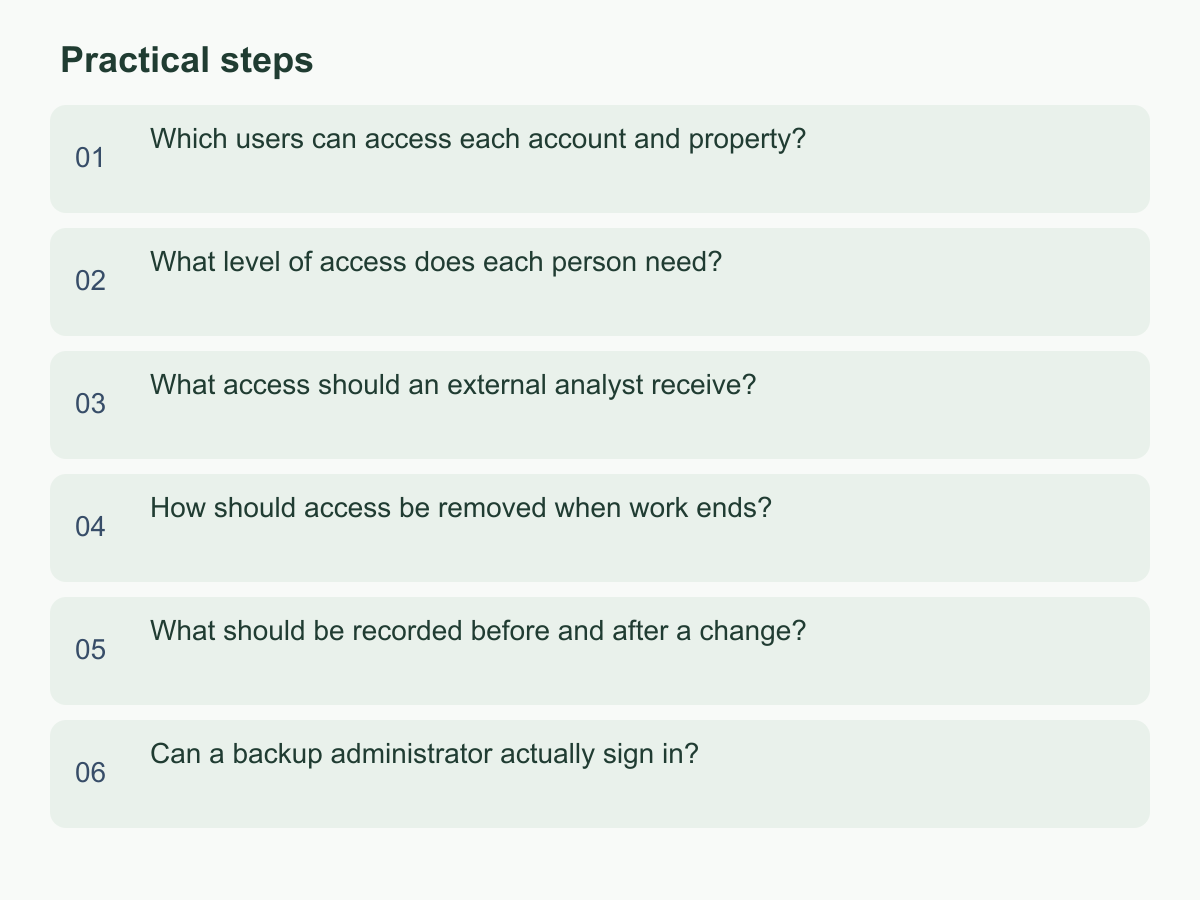
Which users can access each account and property?
Map every GA4 account, its properties, and the website or product each represents. Inspect all company accounts, not just the one used most often. At account and property levels, list users and groups, including identifiable external or linked identities. Mark each grant as direct or inherited: account access may flow down to properties, while a property grant is narrower.
For each identity, record the login email, internal or external status, level, direct and effective roles, owner, work purpose, approver, start date, and review date or end condition. For groups, add the maintainer and membership source. Distinguish an individual, group, and linked account. Verify the actual Google account email; display names are not unique.
Compare the list with current staff, project owners, and active engagements. Flag unknown purposes, departed owners, and ended contracts. Recent activity does not prove need; inactivity alone does not prove access is unnecessary, since work may be monthly or for emergencies. Confirm each property still maps to an active website or product. Ask an internal owner to resolve pending invitations, former employees' accounts, and ownerless groups before removal.
What level of access does each person need?
Start with the task and the property where it must be done. If someone only analyzes one website's or product's data, assess property-level access first. Account-level access applies across properties in that account and may exceed a single project's needs. Review direct and effective roles together: a narrower property role does not cancel a broader inherited role, so the broader effective role determines actual access.
Choose roles by task. Administrator can manage users and permissions. Editor can manage property settings but not users. Marketer can create or edit audiences, events, key events, or attribution settings. Analyst can share explorations. Viewer mainly allows viewing data and settings, but may also allow creating, editing, or deleting explorations. Do not assume Viewer means a person cannot create content. Cost or revenue data restrictions are separate; they do not replace the narrowest necessary role and scope.
Ask whether the person needs to read data, share analysis, change marketing settings, or manage users; whether work spans one or several properties; and what access ends with the task. Assess Viewer for report reading, Analyst to share explorations, Marketer to change events or key events, and Editor for property settings. For Administrator, record the duty and backup. List permitted actions in the register. For cross-property work, define actions property by property before granting account-level access. Record why access is raised and when it should be reduced; afterward, check whether the previous role can be restored.
What access should an external analyst receive?
Before work begins, specify which website or app data the analyst needs and whether they must share explorations, change events or marketing settings, or manage users. Grant only the required properties and role. Delivering an analysis does not itself require account administration. If the analyst only reads data, do not grant Editor or Administrator based on their title. Have each person use their own Google account and record the actual email so changes can be attributed to an individual.
Set an internal owner, work scope, start and end conditions, and review date. If the project is extended, have the owner reconfirm the need. For group access, identify who can change membership and review the group when people join or leave; removing a direct property grant may leave account- or group-based access in place.
GA4 roles do not automatically control Google Tag Manager, advertising platforms, data warehouses, or reporting tools. Review those systems separately. If data includes sensitive cost or revenue information, consider relevant data restrictions and check what the analyst can see. A restriction does not isolate them to one website or replace choosing the right property and role. Have the analyst list needed actions for internal approval. For expanded requests, document the reason, owner, and review date. Confirm the analyst sees the expected property under their own account; do not lend a company administrator login.
How should access be removed when work ends?
Tie removal to a clear event such as a contract ending, handover, or departure. An internal owner should initiate it and another administrator review it. Check direct and inherited access through accounts, properties, groups, and organizational grants. Assign an internal successor to reports or analysis assets that must remain. Do not delete someone's Google account instead of removing GA4 access, or remove the only administrator before a successor is ready.
Remove each grant at its source: property access at the property, account access at the account, and group access through membership or group permissions. Reopen the access lists to confirm the identity has no effective role on relevant properties. Record who acted, when, and any access temporarily retained for handover. Check every source, since removing a direct grant may leave inherited access. Confirm that removing a group member will not disrupt other collaborators.
For example, if three external analysts each have one direct Analyst grant on a property, reconcile and remove those three grants. If one also inherits Viewer from the account, that access continues after the direct grants are removed. The three direct grants are gone, but that analyst's effective access is not zero until the inherited Viewer grant is removed at its account or group source. Zero direct grants does not necessarily mean zero effective access; this example is not a recommendation to use account-level grants.
Have the internal property owner confirm the handover and that the former collaborator no longer needs access. Record the result and any exception. If the person also logs in to a connected tool, check that tool separately; GA4 removal does not revoke access elsewhere.
What should be recorded before and after a change?
For every grant, change, or removal, record the identity email, account or property, direct and inherited roles, reason, work scope, approver, and review condition before acting. Afterward, add the operator, completion time, resulting role, confirmation, and unfinished handover. For several people, record each identity's before-and-after state instead of hiding exceptions in a summary.
Keep evidence and business reason together in a controlled location, such as a ticket linked from the register. Save only necessary screenshots or exports and limit access to relevant administrators. Platform change history can help confirm what changed, but may omit the business reason, end condition, or successor. If the result differs from the request, check the effective role and assign someone to resolve it before marking the change complete.
At each review, compare current access with the previous register. Mark new access, elevated roles, scope changes, access left after departure, and verified removals. Set the cadence to fit staff turnover and external collaboration: a quarterly full check is one option, with updates when staff or contracts change. Have someone other than the operator sample-check high-privilege and active external access, including its reason and next review date. If automatic expiry is not confirmed, add a separate reminder instead of assuming access will end automatically. Ask the requester to reconfirm the business need.
Can a backup administrator actually sign in?
A name on a backup list does not prove someone can take over. For each GA4 account, identify internal Administrators and confirm at least two trusted owners can sign in separately with their own company Google accounts. This is an internal resilience practice, not a fixed Google requirement. Check every account when the company has more than one; an administrator for one property may not manage the whole account.
Before removing a departing administrator, have the backup sign in, select the right account, view its user list, and confirm they can manage access. A person who administers only one property is not a backup for the full account. Do this directly, not from a register or screenshot supplied by the primary administrator. Record the test date, reviewer, account scope, and open issues. If sign-in fails, fix account recovery or access first, then remove the departing person once a working successor is ready.
Administrators should protect their own sign-in and multi-factor authentication; do not share passwords or verification codes. Update backup contacts and recovery steps during handovers. At each review, confirm the primary, backup, and replacement administrators remain employed and can sign in. Start the next review with six fields—identity, level, role, purpose, end condition, and reviewer—then have the backup test in an independent session without exchanging credentials. Record who will fix failed verification or recovery details and what confirms completion.
For information about Chan & Chung, visit the English website.