
When an employee reports clicking a phishing link, first sort the response by what they actually did: opened a page, entered credentials, shared a verification code, downloaded a file, or approved a sign-in. Stop interacting with the page. Notify a manager or IT through the company’s usual trusted channel, and note the approximate time and device. If bank details were involved or an unfamiliar transaction appears, contact the bank through its official app, website, or the number on the card. Clicking alone does not prove an account was taken over; the steps below help contain what may have been exposed and preserve facts for review.
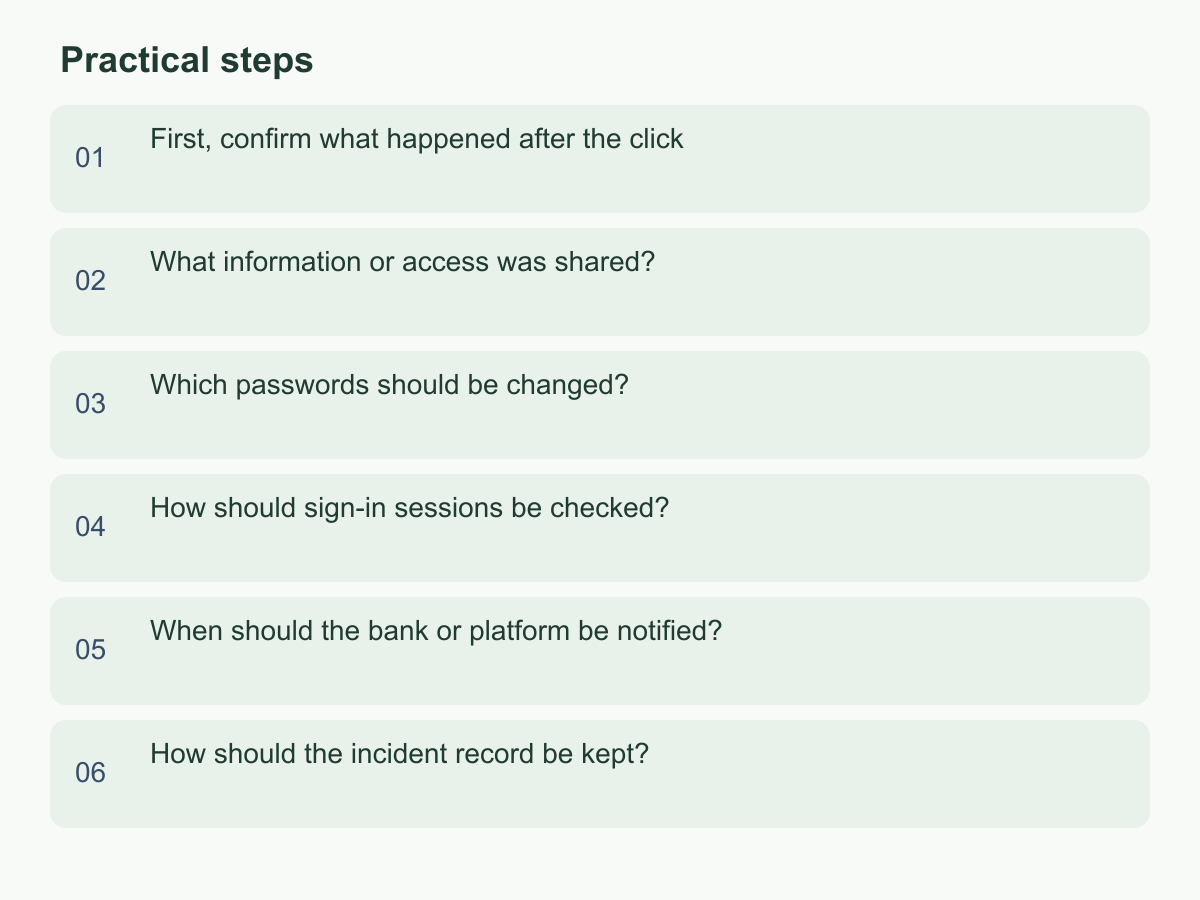
First, confirm what happened after the click
Ask the employee to recall the sequence: when they opened the message, which page appeared, what it asked, what they clicked, and where they stopped. Avoid blame and the vague question “Were you hacked?” Specific actions determine the response. Close the suspicious page. Do not return to it to test whether it is genuine, or share the link for colleagues to try.
Record the approximate message and click times, the sender’s display name, browser, device and network used, and any prompt to download or install a file, allow notifications, approve a sign-in, or open an attachment. Opening a page without entering information, downloading a file, or installing software does not usually mean an account is compromised. The UK NCSC’s phishing guidance distinguishes this situation from sharing details or installing a program. Still tell IT if a company device was involved so the team can decide whether to review mail or device records.
If a file downloaded, do not open or delete it; report its name and source. If it was opened or installed, a QR code was scanned, notifications were allowed, or a third-party sign-in was approved, tell IT exactly what happened and escalate promptly. Do not install a cleanup tool, shut down, reset, or clear browser data on a company device without IT direction, since those actions may change what can be checked. Follow IT guidance on pausing activity, disconnecting from the network, or scanning. If suspicious software was run on a personal device, stop signing into sensitive accounts and scan it with trusted security software. The NCSC recommends a full scan when suspicious software has been installed.
What information or access was shared?
Break “I clicked it” into specific information and actions. Ask whether the employee entered a company email address or password, a reused personal password, a one-time code, a recovery code, card or online banking details, payment instructions, or uploaded a customer file. Also ask whether they approved a sign-in, scanned a QR code to link a device, or gave a third-party app access to email, calendars, or cloud files.
Employees should not repost passwords, verification codes, card numbers, or customer information in a group chat. They only need to identify the type of information, the account involved, whether it was submitted, and whether the page showed a success message. If they are unsure whether it was submitted, treat it as possibly exposed and mark that detail as unconfirmed; the platform’s records can help verify it.
| Action | Priority response |
|---|---|
| Opened the page only; entered nothing and downloaded nothing | Record what happened, notify company IT, and watch for account alerts |
| Entered a company password or recovery information | Protect that account and check whether the password was reused |
| Submitted a code, approved a sign-in, or authorized an app | Notify IT or the platform immediately and request a review of sign-ins and access |
| Entered bank or card details, or a payment code | Contact the bank immediately and check transactions and card status |
| Downloaded or ran a file, or uploaded a company document | Tell IT the file name, source, and whether it was opened |
Assess whether information left a trusted page or a new sign-in was authorized; do not rely on the page’s appearance or a general statement such as “I didn’t type my password.” For example, an approved sign-in prompt counts as an access event even if no password was entered. If a file was uploaded, note its name and the type and approximate scope of its contents, but do not send a copy to a personal cloud account or an outside support chat.
Which passwords should be changed?
If a password was entered on the suspicious page, use a clean, trusted device to go directly to the service’s official website or app and change that account’s password. Do not use the phishing link or repeatedly sign in from a device that may be affected. Choose a password that is different from the old one and not shared with other services. If the same password was used elsewhere, change it on each affected account too. Prioritize company email and administrator accounts because they may be used to reset access to other systems. Employees should tell IT which services shared the password; they should never give the password itself to a manager.
If the employee only opened the page and did not enter a password or approve a sign-in, a company-wide password reset is not warranted solely because of the click. Continue watching for sign-in alerts and unusual messages instead. If a verification or recovery code was shared, act on the account immediately even if the password was not: use the official route to change the password, confirm recovery phone numbers and email addresses still belong to the employee, and notify IT or the platform.
After a reset, confirm that multi-factor authentication is still under the employee’s control and remove any unfamiliar methods. If the reset process shows an unknown phone number or email address, or access is blocked, stop guessing and use the platform’s account-recovery process with IT’s help. If company single sign-on or an administrator controls the password, contact the administrator first so active credentials are not missed. Use the reset scope that matches the credentials actually exposed and their reuse. For example, if only a company email password was entered, secure that account and update accounts using the same password; do not change a password to a version that differs by only one character. If the service offers sign-out from other devices or session revocation, use it as appropriate and record when it was done.
How should sign-in sessions be checked?
After changing a password, review recent sign-ins, signed-in devices, and connected apps through the service’s official entry point. Compare the activity with the employee’s usual devices and schedule. Location can be imprecise, especially when a VPN is involved, so an unfamiliar city alone does not prove an intrusion. For example, a nearby-city sign-in during a business trip may fit the employee’s device and schedule; record it and check for other signs before drawing a conclusion.
If a session is definitely unrecognized, use the platform’s sign-out or removal controls, change the password, and review recovery details. Google’s guidance notes that one device can have multiple sessions, so check each one. For company email, cloud storage, or administrator accounts, ask IT to review management-side sign-in records and revoke sessions, app access, or permissions as needed. An ordinary user view may not show all administrator information.
Microsoft states that signing out of an account everywhere may take up to 24 hours for some browsers and apps. Record when the request was made and verify later sign-ins through security alerts or administrator records; pressing the sign-out button does not prove that every session ended immediately. (Microsoft’s account sign-out guidance)
Also check email forwarding rules, delegated access, connected apps, multi-factor authentication methods, and recent messages or file shares the employee does not recognize. Make changes only through the official site or company administration interface, not a “security center” link in the suspicious message. Escalate immediately if a sign-in cannot be explained, recovery details have changed, or an unexpected forwarding rule appears. If activity matches the employee’s devices and schedule and there are no unknown permissions or settings changes, record the review and continue monitoring.
When should the bank or platform be notified?
If the suspicious page received online banking credentials, a verification code, card details, or the employee sees an unfamiliar transaction, payment approval, or card-linking alert, contact the bank immediately through its official app, website, or the phone number on the card. Explain when the information was entered, whether a code was shared, and what transactions are visible. Ask whether online banking, the card, or payment functions should be restricted. Do not call a number from the message or share a verification code with someone claiming to be from the bank. The Hong Kong Monetary Authority’s fraud guidance also advises verifying through a reliable channel and promptly notifying the card issuer about suspicious transactions. Contact the bank even if no money has been taken when card or online banking details were submitted.
For a company email, cloud, social, payment, or customer-management account, use that platform’s official security or recovery channel and notify company IT. If an administrator account, payment setting, supplier bank details, or customer file may be affected, also tell the responsible manager, pause related sensitive actions, and have an authorized person verify changes. If the employee only clicked and shared or authorized nothing, notify IT and monitor; contacting the bank is generally unnecessary.
If money was transferred or an unauthorized transaction appears, keep the bank’s case number and contact time, follow the bank’s instructions, and use the company’s procedures to decide whether to notify police or another relevant body. Do not assume a statutory reporting deadline. For payment platforms, check for newly added recipients, devices, or permissions through the official portal. Verify supplier payment changes by calling a known company number, not one supplied in the suspicious message. If customer data may be affected, have the responsible person assess the scope before communicating; avoid sending speculative notices while the facts remain unclear.
How should the incident record be kept?
Keep one incident record with access limited to people who need it for the response. Write events in time order: receipt of the message, click, information entered or sign-in approved, report to a manager or IT, password change, session revocation, and contact with a bank or platform. Include the message source, displayed sender, actual URL or domain, device and browser, downloaded file name, sign-in prompts, actions the employee confirms, and any case number or response summary.
Preserve the original email or message in a company-approved location; do not keep only a screenshot and then delete the original. If IT or the platform has a security-reporting process, provide the original message or attachment through that process. Avoid forwarding it to a large group, uploading it to an external scanning site, or prompting others to open the link. Before taking a screenshot, cover passwords, one-time codes, full card numbers, customer personal information, and documents that are not approved for disclosure. Record who captured the screenshot, when, and where the original file is stored.
Use neutral wording, such as “Employee reports entering the company email password after clicking; submission is not yet confirmed.” Do not label the account “hacked” before the evidence supports it. For each action, record who did it, when, and the result, including “not yet confirmed” or “platform has not replied.” Keep a change history when updating the record.
Have one responsible person maintain the summary and open tasks. Secure the account first, then investigate affected data and people. Record the basis for closing the incident and any unresolved work after checking for new sign-ins or unusual transactions. Store the record under company retention rules and do not keep full card numbers, passwords, or unrelated customer files longer than needed. If an original email file is required, record its source and location; IT can obtain headers or system logs if needed without altering the original. Ask employees to report what they actually did promptly, and have IT or a manager maintain the single record while contacting affected platforms or the bank. For information on Hong Kong business operations and overseas expansion, visit Chan & Chung.