
Businesses often rely on client procurement portals for enquiries, orders, delivery updates, and documents. Account details may be spread across procurement, finance, and operations teams. When someone changes roles or leaves, orders and notices can lose an owner. Start by identifying who actually uses each portal, then assign responsibilities, backup contacts, and a way to confirm that access changes are complete.
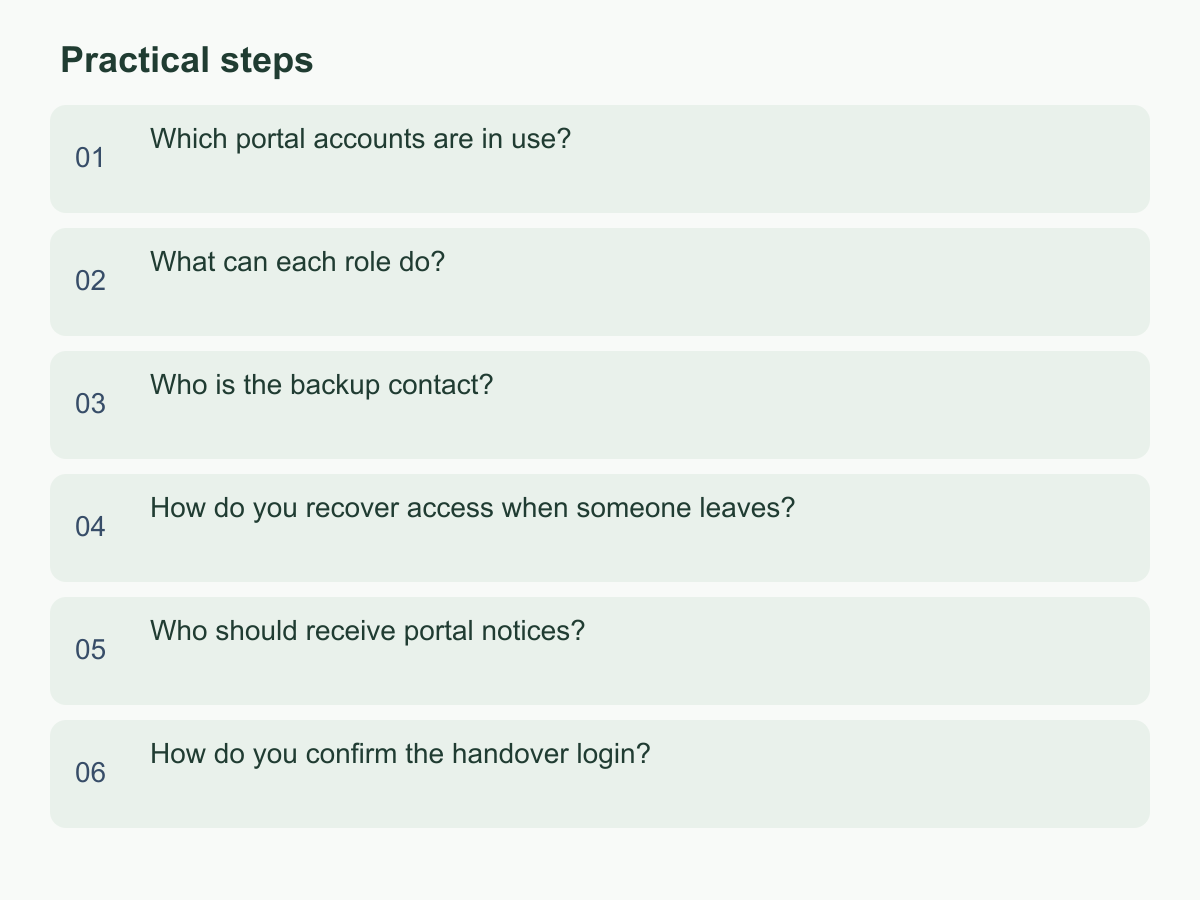
Which portal accounts are in use?
Start with “who uses which portal, under what identity, and for what task?” rather than collecting URLs and passwords. List the client procurement portals used to request quotations, create or submit orders, check delivery status, or download files. Mark each account as a production or test account. If a client has multiple entry points or supplier aliases, record each separately; similar names do not mean the accounts or permissions are the same.
For each entry, record the portal name, login URL, company identifiers, account holder, department, purpose, permission summary, linked company email and phone, and backup contact. Do not put passwords, verification codes, or recovery codes in a general inventory. Record which controlled channel stores them and who is allowed to retrieve them. If an account is tied to a personal email address, note that its contact details need attention when responsibilities change.
Distinguish individual accounts from shared logins. Individual accounts help identify who submitted or changed information; a shared login can make activity hard to attribute. If a portal requires a particular account format, document the restriction, current users, and workaround. Check whether individual users can be added instead of spreading a shared login for convenience.
For several portals, ask procurement, finance, and operations to list the entry points they use. Have one inventory owner merge duplicates and confirm each portal’s purpose. Mark it “active,” “to confirm,” or “inactive,” with a reason such as an open order or a manager’s confirmation. This avoids treating an account as unused based only on old email.
What can each role do?
Do not assume internal job titles match portal roles. List the actions each person needs, then check the portal’s actual permissions: viewing, creating, submitting, approving, managing users, or downloading files. Verify each permission in the portal or its administrative records; a role name that sounds familiar does not prove it includes a particular capability.
Use this table as an internal planning example. These are work assignments, not standard roles offered by every portal, and a portal may not separate permissions this finely. If its controls are broader, record the limitation, any manual review needed, and who approves an exception.
| Internal responsibility | Actions needed | Check and record |
|---|---|---|
| Procurement operator | View requests; create or update orders | Confirm action scope |
| Procurement reviewer | Check information against internal process | Record reviewer |
| Finance contact | Receive account details; organize files | Check receipt and storage |
| Account administrator | Maintain users and contact details | Record changes and confirmation |
Assign access based on the task. Someone who only enters information should not receive user-management rights just to simplify handover. An approver may need to identify pending work without taking over routine ordering. If permissions cannot be separated, document who can do what and which actions need a second colleague’s review. Keep sensitive access limited to people who need it.
After a change, update the inventory with the account holder, changed role or permission, requester, confirmer, and date. If you cannot verify the permission in the portal or an administrative record, mark it for confirmation and ask the administrator. A colleague being notified does not prove the access change is complete.
Who is the backup contact?
Assign one day-to-day owner and one backup contact for every active procurement portal. The owner handles routine orders and record maintenance. The backup should know how to find the portal, locate pending work, contact the right colleagues, and start the internal handover if the owner is unavailable. A backup need not log in every day, but should understand the responsibility rather than appear only as a name in a spreadsheet.
Before assigning the backup, check working hours, team responsibilities, available company contact details, and required permissions. If the backup only needs to view pending work, user-management access is unnecessary. If a task requires higher permissions, record the reason, authorizer, and review frequency. Have a manager confirm the backup and explain when procurement, finance, or another manager must be notified.
Assign responsibility for account recovery, but do not give the backup the owner’s personal password. Prefer individual accounts and permissions where the portal allows them. If the company has an approved credential storage process, record who is responsible for access under that process. Keep recovery email, verification methods, and phone numbers on channels the company can manage, so account recovery does not depend on a former employee’s personal details.
A short backup card can list the portal, work entry point, owner and backup contacts, where to find pending work, who checks permissions, and whom to contact if login fails. Leave passwords and one-time verification details off the card. If the backup changes, update the inventory and contact details, then ask the new contact to confirm they know how to take over.
Consider a pending order during the primary operator’s leave. The backup should know where to find it, who decides whether it needs action, and whom to update. They should not make unfamiliar changes simply because they are covering. If they cannot find the entry point or decision maker, improve the instructions and verify the required permissions with the responsible administrator.
How do you recover access when someone leaves?
Connect the departure notice to the portal inventory. Once a manager or relationship owner confirms a person’s departure, list the procurement accounts, linked email addresses, phone numbers, devices, and pending tasks they used. Assign a person to carry out the recovery steps and another to confirm completion. Process each portal separately; disabling an internal company account does not establish that access to an external portal has ended.
Transfer work first under the company’s approved timing and process. Hand over open enquiries, orders, documents, and replies, and confirm that the appropriate colleagues can access business records they still need. Then use the portal’s available controls to disable or remove the user and update contact details. Check whether the former user can still use a prior login method. If the portal lacks a relevant control, record the limitation and refer the next action to an internal administrator.
Review other access paths too: authorized devices, active sessions, email forwarding, shared credentials, and verification methods held by the departing person. Decide what to revoke or update based on the portal’s capabilities and company process; platforms do not all offer the same settings. If people share a login, consider moving to individual accounts. If the shared method must remain, update it through the approved process and limit who knows it.
Record the account, action date, method, person who handled it, reviewer, and any unfinished item with its reason. A person’s confirmation that they handed over work does not prove that access was removed. Look for verifiable evidence, such as the user’s status in an administrative view or confirmation from the portal administrator. If a response is delayed, record who will follow up and what happens next; leave the item open until the result is clear.
Keep order histories and files available to colleagues who need them, but do not retain a former employee’s login just to preserve records. After recovery, have an administrator check that the inventory’s owner, contacts, and backup fields are current and that the new operator can continue pending work.
Who should receive portal notices?
Separate who receives a notice from who is responsible for acting on it. Procurement invitations, order updates, requests for documents, and account information may need different teams. List the notice types each portal sends, where they currently go, and the primary and backup contact responsible for each. Forwarding everything to one person is not a complete plan unless someone else is assigned when that person is unavailable.
Prefer a company-managed email address or an internally approved group address. If the portal permits only a personal address, record its current holder, who must update it after a change, and the handover step. Whether a group address works depends on the portal settings and company policy. Avoid tying important notices only to a departing colleague’s personal email, private phone, or an unmaintained alias. Do not add people who do not need the information.
Maintain a routing table with notice type, receiving address, owner, backup, and how to check if a notice is missing. If notices appear in both a portal inbox and email, identify the official work queue and assign someone to check that pending items are handled. Group mailboxes and forwarding rules may not be supported everywhere; confirm actual settings and ask the relevant contacts to verify receipt after changes.
When someone leaves, review notice settings and receiving channels before disabling their account. Otherwise, notices may still go to an obsolete address or a forwarding rule may send information to someone who is no longer responsible. Record who checked which notice types and what remains unverified. If the portal cannot route notices by type, assign internal follow-up and clarify who checks, reports, and tracks overdue items.
Tie notice checks to the handover: ask the owner and backup to confirm where they will see pending work and how they will report a message that needs action. Do not assume a portal has a special test feature. Use an ordinary notice or existing pending item where appropriate. If it does not arrive, check portal contact details, email rules, and recipient access separately, and record the findings and follow-up owner.
How do you confirm the handover login?
The handover is complete when the new owner can use their own account to reach the required workspace, see the relevant work, and perform their assigned tasks without unnecessary permissions. Arrange for the user to log in with an administrator available to help. Confirm the account and portal are correct, verification works, and the user can find the pending-work area. An administrator saying “the account was added” does not show that the user can sign in.
Compare access with the inventory: can the user see the required information and complete necessary tasks, while unrelated administrative features remain unavailable? Use a viewing step that will not submit an order or change information. If confirmation requires an action that submits data, follow the company’s approval process first and explain its effect. Record any missing or excessive permission, have an authorized administrator adjust it, and check again.
Also confirm that recovery contacts, notice routing, and the backup contact remain correct. If the portal requires multi-factor authentication, check that the user can complete it using a method currently supported by that portal. Make sure they know whom to contact if a device is lost or login fails. Never put codes, passwords, or recovery secrets in the handover record. If portal-administrator activation is pending, record the owner and follow-up step; do not mark the account complete while login is unconfirmed.
Record the account tested, confirmer, date, work checked, notice and backup status, and remaining actions. Ask the new owner and backup to confirm their responsibilities and assign each open item to a named person. To put this into practice, start with one active procurement portal and complete its account inventory and recovery record with the relevant colleagues. Then reuse the same fields for other portals. For more information about Chan & Chung, visit the homepage.